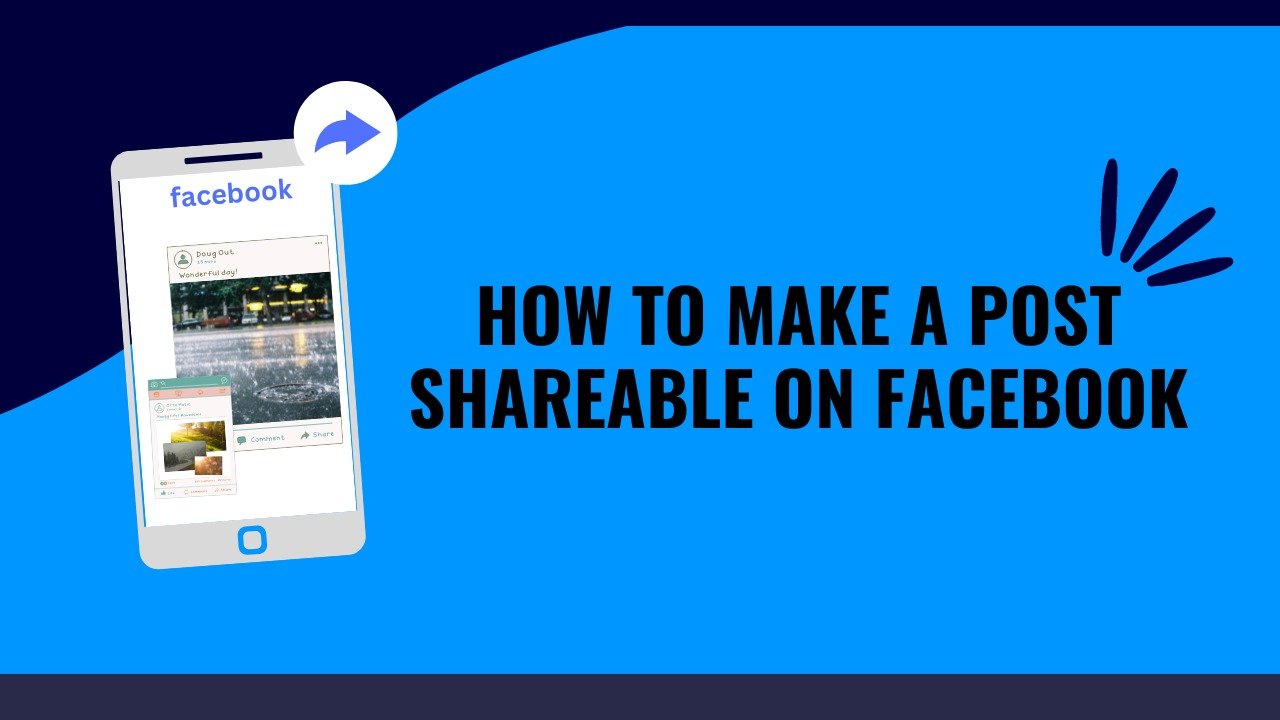

If you want more people to see your Facebook content, sharing is very important. Knowing how to make a post shareable on Facebook can help your photos, updates, links, and announcements reach a wider audience. The good news is that the process is simple. You mainly need to check the audience setting for your post. Facebook uses audience controls to decide who can view your content. If a post is limited to friends, the sharing options can also be limited. A public post gives people more freedom to share it. Facebook’s settings and menus can change over time, so the exact wording may look slightly different on your device. The basic idea remains the same: choose the right audience before publishing. In this guide, you will learn the easiest methods, common problems, privacy tips, and practical examples.
What Does a Shareable Facebook Post Mean?
A shareable Facebook post is content that other people can share with their own audience. When a post has the right visibility setting, Facebook can show a Share option to viewers. This makes it easier for your content to travel beyond your original audience. For example, imagine that you publish an announcement about a local event. If only your friends can see it, sharing may be limited. If you publish it publicly, more people may be able to share it. This does not mean everyone will automatically see your post. Facebook still decides how content appears in feeds based on its systems and user settings. Shareability simply gives people an easier way to pass your content along. This is useful for creators, businesses, community members, and anyone who wants wider reach.
How to Make a Post Shareable on Facebook Before Posting
The easiest way to make a post shareable is to set its audience before you publish it. Start by opening Facebook and creating a new post. Write your message, add a photo, video, link, or other content. Look for the audience selector near your name. It may show options such as Friends, Public, or another audience. Choose Public if you want the post to have the widest possible visibility. Then review your post and publish it. This is the simplest answer to how to make a post shareable on Facebook. Your interface may look different on Android, iPhone, or desktop. However, the audience selector is the setting you should focus on. Facebook’s privacy controls determine who can see content, so checking this option before posting can prevent many sharing problems.
How to Make an Existing Post Shareable
You can often change the audience of a post after publishing it. First, open your Facebook profile and find the post. Tap or click the three-dot menu on the post. Look for an option related to editing the audience or privacy. Select Public when available. Save the change and return to the post. The post should now have broader visibility. This method is useful when you originally posted something only for friends. You may later decide that you want more people to see it. Remember that changing a post to Public can make it visible beyond your existing friends list. Consider the information in the post before making this change. Avoid making private details, personal contact information, or sensitive photos public just to increase reach. Shareability is useful, but privacy should always come first.
Why Is There No Share Button on My Facebook Post?
Many people ask why their Facebook post does not have a Share button. The most common reason is the post’s audience setting. If the content is restricted to a smaller audience, Facebook may limit how others can share it. Other factors can also affect what people see. For example, the content may belong to a group, page, story, or another Facebook area with different sharing rules. The original creator may also have selected an audience that prevents broader distribution. To troubleshoot the problem, open the post and check its audience setting. If appropriate, change the audience to Public. Then view the post again. You can also ask a trusted friend to check whether the Share option appears from their account. Facebook’s interface changes regularly, so menu names may vary by device or account.
How to Make a Post Shareable on Facebook From Your Phone
Most people use Facebook through a mobile device, so it helps to know the mobile process. Open the Facebook app and start a new post. Add your text, image, video, or link. Before publishing, check the audience option displayed below your name. Tap it and choose Public if you want broader sharing. Then return to your post and publish it. If you are editing an older post, open the three-dot menu and look for the audience or privacy option. The wording can vary between Android and iPhone versions. The important part is finding the audience selector. This is one of the fastest ways to understand how to make a post shareable on Facebook. Always check the audience before pressing the final Post button. A quick privacy check can save you from editing the post later.
How to Make a Post Shareable on Facebook From a Computer
The desktop version follows a similar process. Go to Facebook and open the post composer. Add your content and locate the audience selector. Choose Public if your goal is maximum visibility. After publishing, you can open the post menu to review available privacy options. If you are working with an older post, visit your profile and find the content you want to change. Open its menu and check whether you can update the audience. Desktop Facebook may use slightly different icons or wording from the mobile application. Do not worry if your screen looks different from a tutorial you watched months ago. Facebook frequently updates its interface. Focus on the audience or privacy control instead of a specific button location. That approach makes how to make a post shareable on Facebook easier to understand across different devices.
How Facebook Privacy Settings Affect Sharing
Privacy settings are directly connected to the way your Facebook content can be shared. A post intended only for friends has a different reach from a public post. Facebook gives users control over their audience because not every update should be visible to everyone. Before making something shareable, think about what the post contains. A family photo may be better suited to friends. A business announcement may benefit from a public audience. A helpful article or public event may also be suitable for wider sharing. The goal is not to make every post public. Instead, choose the audience that matches the purpose of the content. This simple habit protects your privacy while helping useful posts reach the right people. Understanding audience controls is more important than simply looking for a Share button.
Can Friends Share a Post That Is Not Public?
A post that is not public may have limited sharing depending on its audience and location. For example, a Friends-only post is designed for a restricted audience. Even if someone can interact with it, they may not be able to share it freely with everyone. This is why people sometimes think their Facebook account is broken. In many cases, the privacy setting is working as intended. If you want friends and other Facebook users to share the content more widely, Public is usually the appropriate audience. However, remember that changing the audience also changes who can view the post. Never change a private post to Public without considering that difference. When you understand the connection between visibility and sharing, Facebook’s privacy controls become much easier to manage.
How to Make a Photo Shareable on Facebook
Photos can be made more shareable by checking their audience when you upload them. Create a new post and add your photo. Before publishing, open the audience selector. Choose Public if you want the photo to reach a broader Facebook audience. If the photo is already published, open the post menu and check whether you can change its audience. Be careful with personal images. Public photos can reach people outside your friends list. Avoid sharing private documents, addresses, phone numbers, children’s sensitive information, or other details that should remain private. For promotional photos, consider adding a short caption that explains why people should share them. A useful image with a clear message can encourage natural engagement. The best sharing strategy combines the right audience with content people actually want to pass along.
How to Make a Link Post Shareable
Link posts can also benefit from the correct audience setting. Suppose you share an article, website, product page, or useful resource. Before publishing, check who can see the post. If your goal is broad visibility, select Public. Add a short explanation so people understand why the link matters. Avoid posting only a bare URL when a simple introduction would make the content clearer. For example, explain what readers will learn or why the resource is useful. This can make the post more attractive to your audience. Also, make sure the destination website is trustworthy and relevant. A public post can reach people outside your normal network, so quality matters. If the link contains misleading claims or suspicious content, people may avoid sharing it. Good content and clear privacy settings work together to create a better Facebook post.
How to Make a Facebook Post More Likely to Be Shared
Making a post technically shareable is only the first step. People also need a reason to share it. Useful information, helpful tips, original photos, interesting stories, and timely announcements can encourage sharing. Keep your main idea clear. Use short paragraphs and simple language. If you include an image, make sure it supports the message. You can also invite people to share when appropriate. For example, a community announcement might say, “Please share this with anyone who may need the information.” Avoid using fake claims or aggressive engagement tactics. People are more likely to share content they trust. Consider your audience before writing the post. Ask yourself whether the information solves a problem, answers a question, entertains someone, or provides useful value. If the answer is yes, your content has a stronger chance of receiving natural shares.
Why Your Public Post May Still Have Limited Reach
Making a post public does not guarantee that it will become popular. Public means eligible for broader visibility, not guaranteed distribution to everyone. Facebook’s systems decide how content is presented to users. People also have their own preferences and activity patterns. A public post may receive very few views if the topic does not interest the audience. Timing can also influence engagement. Content quality matters just as much. If your post is confusing, too long, or unrelated to your audience, people may scroll past it. Think of the Public setting as opening the door. Your content still needs to give people a reason to walk through it. This is an important distinction when learning how to make a post shareable on Facebook. Shareability creates an opportunity, while useful content creates interest.
Common Reasons Facebook Posts Cannot Be Shared
There are several reasons why a post may not behave as expected. The audience may be restricted. The post may be inside a Facebook group with its own rules. The content may come from another area of Facebook where sharing works differently. Your account or the original content may also have specific restrictions. Sometimes the Facebook app can display different options from the desktop website. When troubleshooting, first check the audience setting. Next, consider where the post was created. Then try viewing it from another account if possible. Avoid assuming that every missing Share button is a technical error. Often, the privacy design explains the behavior. Facebook’s sharing options can also change as the platform updates its features. Checking the current interface is better than relying on an old screenshot.
How to Check Whether Your Post Is Public
Checking your post’s audience is quick. Open the post and look near your name or profile information. Facebook usually displays an audience symbol or label. A globe-style indicator generally represents a Public audience. Other symbols can represent more restricted audiences. You can also open the post menu to review privacy options. If the post is Public, it has the broadest standard visibility option. If it is restricted, consider whether that matches your goal. This small check can help prevent mistakes. It is especially useful after publishing important announcements, business updates, event information, or helpful resources. If you regularly publish public content, make checking the audience part of your posting routine. That simple habit makes how to make a post shareable on Facebook much easier in everyday use.
Shareable Posts for Facebook Pages
Facebook Pages work differently from personal profiles in some areas. Pages are generally designed for public communication, so their posts are often intended for a broad audience. If you manage a business, organization, creator page, or community page, focus on creating useful content that people want to share. Write clear captions and provide context. Use images or videos when they genuinely improve the message. If you are promoting an event, include the important details directly in the post. Avoid hiding the main information behind unnecessary clicks. You should also monitor comments and questions after publishing. Good engagement can help you understand what your audience finds useful. While page settings and features can vary, the same basic principle applies: make the content useful, keep the audience appropriate, and give people a clear reason to share it.
How to Make a Facebook Post Shareable Without Losing Privacy
You do not need to make every Facebook post public. Instead, separate personal content from content meant for wider reach. Keep private family updates limited when appropriate. Use Public for information that you genuinely want a wider audience to see. For example, a business announcement, public event, educational tip, or community notice may be suitable for public sharing. Before changing a post, check for private information. Remove phone numbers, addresses, personal documents, and other sensitive details. Think about whether you would be comfortable with a stranger seeing the post. If the answer is no, keep the audience restricted. This balanced approach is better than making everything public. Learning how to make a post shareable on Facebook should also include learning when not to make something shareable.
Best Practices for Shareable Facebook Content
A strong Facebook post usually has one clear purpose. Start with the main idea instead of making readers search for it. Use simple words and avoid unnecessary filler. Add a relevant image when it improves the message. If you share a link, explain what readers will find. If you share an announcement, include important dates and details. You can also ask a natural question to encourage conversation. Most importantly, provide real value. People share posts that help friends, solve problems, provide useful information, or create an emotional connection. Do not depend on misleading headlines or false promises. Trust is more valuable than a quick spike in shares. Facebook’s public audience option can help increase potential reach, but valuable content gives people a reason to use that Share button.
A Simple Example of a Shareable Facebook Post
Imagine you run a small community group and want to announce a free weekend workshop. You create a Facebook post with the event date, location, time, and registration information. You add a simple photo and explain who can attend. Before publishing, you choose Public as the audience. Now people outside your immediate friends list may be able to see the post and share it. Someone who sees the announcement could share it with a colleague or family member. That person might then pass it along again. This is a simple example of why public visibility can matter. However, do not include private registration information in the public post. Use a secure and appropriate contact method instead. A good shareable post gives people enough useful information to understand the message without exposing unnecessary personal details.
How to Make a Post Shareable on Facebook: Quick Checklist
Before publishing, use this quick checklist. First, decide who should see the post. Next, check the audience selector. Choose Public when broad sharing is appropriate. Review your text and remove private information. Check images for personal details that should not be public. Make sure links lead to useful and trustworthy pages. Then publish your post. After publishing, open it again and confirm the audience. If the Share option is missing, review the privacy setting and where the post was published. You can also test the post from another account when appropriate. This process takes only a few minutes. It can prevent many common problems. More importantly, it helps you use Facebook’s privacy and sharing tools intentionally instead of changing settings without understanding their effect.
Frequently Asked Questions
1. How do I make a post shareable on Facebook?
Create or open the post and check its audience setting. Choose Public when you want broader visibility. The exact menu can vary by device and Facebook version. Always review the post before making private information public.
2. Why can’t people share my Facebook post?
Your post may have a restricted audience. It could also belong to a group or another Facebook area with different sharing rules. Check the post’s audience setting first. If appropriate, change it to Public.
3. Can I make an old Facebook post shareable?
In many cases, you can change the audience of an existing post. Open the post menu and look for its audience or privacy option. Select Public if the option is available and suitable for your content.
4. Does making a Facebook post Public guarantee more views?
No. Public visibility allows broader access, but it does not guarantee reach. Facebook decides how content is distributed. Your topic, content quality, audience interest, and engagement can all affect performance.
5. Can I make a Facebook photo shareable?
Yes, if the photo’s audience settings allow broader visibility. Check the audience before or after posting. Be careful with personal photos because a Public audience can expose them to people outside your friends list.
6. Why should I make a Facebook post shareable?
A shareable post can reach people beyond your immediate audience. This can be useful for announcements, helpful information, events, business updates, and community messages. However, you should only make content public when you are comfortable with wider visibility.
Conclusion
Learning how to make a post shareable on Facebook is mostly about understanding your audience settings. The Public option is usually the key when you want broader visibility. However, shareability should never come at the cost of privacy. Always review your post before making it public. Remove sensitive information and choose the audience that fits your purpose. If your goal is greater reach, focus on useful and trustworthy content too. A clear message, helpful information, and relevant media can give people a real reason to share. Facebook’s interface may change, but the basic principle remains simple: control who can see your post, then create something worth passing along. With these steps, you can confidently publish content that has a better chance of reaching beyond your immediate Facebook audience.